 Peekr
Let AI suggest. Keep the final say.
Prepare my walkthrough proposes a media order, headings and talking points for your property. You review every suggestion and decide what becomes the presentation.
Updated November 6, 2026. Based on Peekr 1.6.2.
Begin with a saved listing
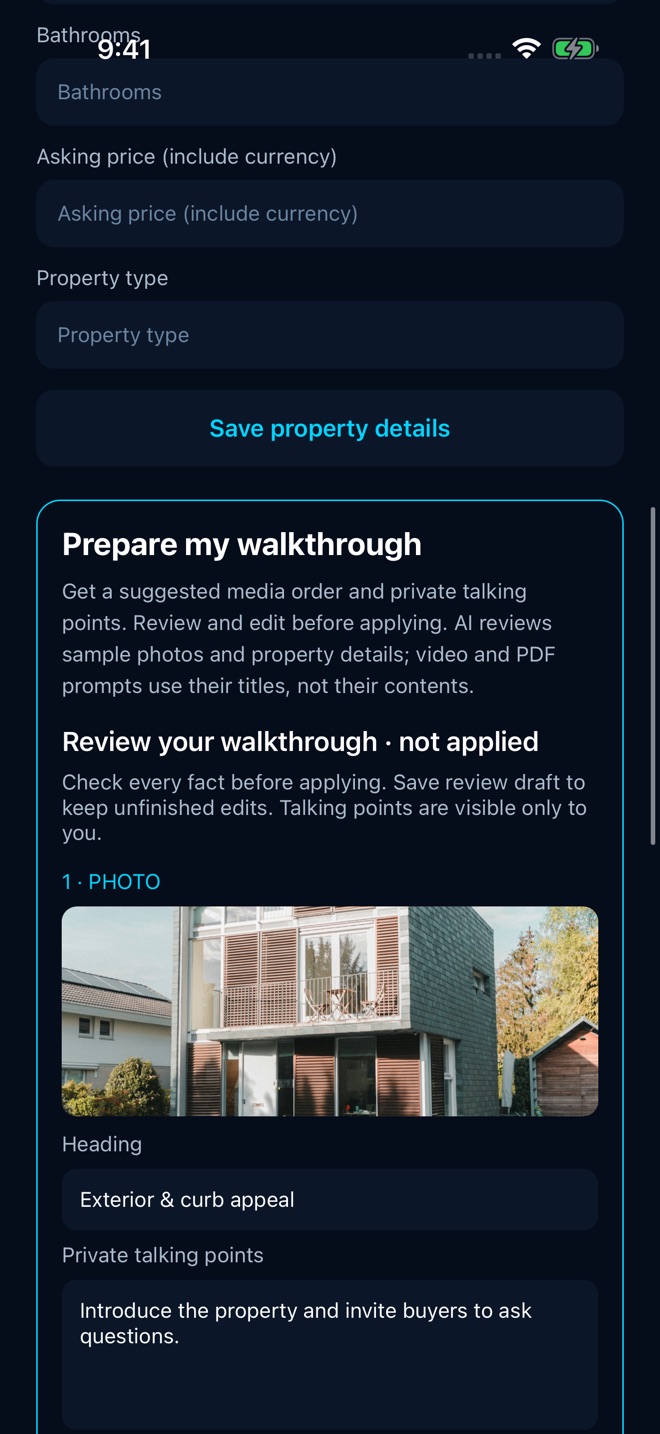
Open a property in Listing Studio · My listings, or create a listing and add photos or walkthrough media first. Fill in the property details you know, including the name or address, bedrooms, bathrooms, price with currency and property type.
Clear, relevant photos and accurate details give you a better starting point for reviewing suggestions. Preparing the listing does not require a showing code.
Enable previews and decide what to share
Eligible verified App Store downloads receive three successful AI generations in total. This is one shared allowance for the AI listing tools and Prepare my walkthrough, rather than three generations per tool. Use Enable free AI previews if the App Store download has not yet been verified. Pro includes its own AI allowance.
Before selected content is sent to Anthropic, Peekr asks for your permission. Prepare my walkthrough uses sample property photos and details. PDF and recorded-video prompts use their titles; the AI does not analyze the contents of those files for this feature.
You can decline AI sharing and use Edit playlist & talking points manually. There is no Peekr sign-in. App Store verification may ask you to confirm your Apple Account; Peekr does not collect your Apple password.
Generate one suggestion
In the Prepare my walkthrough panel, tap its generation button and wait for the result. Peekr saves the complete suggestion for review. Your applied playlist stays unchanged at this stage.
The AI credit counts when a complete suggestion is saved, even if you decide not to apply it. Generating another suggestion uses another available generation. To refine the result without a new generation, edit the saved review.
Check the order and every talking point
In Review your walkthrough · not applied, read each item against the actual property. Check room names, visible features and any claims. Remove unsupported details; supply facts such as dimensions, condition or amenities only when you have verified them.
Edit the Heading and Private talking points fields. Use Earlier and Later to change the order. Talking points are host-only notes for the conversation.
If you change the listing media after creating the draft, Peekr can mark the review as out of date. Choose Start fresh from current playlist to review the current media manually, or generate a new suggestion if you want another AI result and have an available generation.
Save a draft or apply the reviewed walkthrough
Use Save review draft to keep unfinished edits and return later with Reopen saved review. Saving a draft does not replace the applied playlist.
When the headings, order and notes are ready, tap Apply reviewed walkthrough. Then use Start Showing from that saved listing. Your prepared playlist and private talking points carry into the session.
Close review leaves the applied playlist unchanged. If you have unsaved review edits, keep editing or save/apply them before leaving. Read how to host the showing.
Questions before you begin
Can I use the walkthrough tools without AI?
Yes. Use manual playlist order and Edit playlist & talking points manually. Manual editing and applying a reviewed plan do not use an AI generation.
Will AI review my whole PDF or recorded clip?
No. This feature uses their titles in the prompt, rather than analyzing their contents. It uses sample photos and supplied property details where available.
Can I reset the three free generations by reinstalling?
No. The server stores the credits against a verified App Store download identity. Reinstalling does not provide a fresh allowance.
Make it your next showing.
Download Peekr for iPhone, or explore the guided website demo first.